Typing is a core part of modern work. Emails, reports, messaging platforms, and documentation all depend on consistent keyboard use. For people experiencing hand tremors, typing can quickly become frustrating. Even small tremor movements may affect accuracy, slow down productivity, or make computer tasks feel exhausting.
Conditions such as Essential Tremor and Parkinson’s Disease often cause involuntary hand movements that make precise actions more difficult. When tremor affects typing, it can lead to frequent errors, missed keys, or difficulty controlling a mouse.
The good news is that many practical strategies can help. From ergonomic workstations to assistive technology and workplace accommodations, there are ways to stay productive and comfortable at a computer.
This guide covers practical solutions professionals use every day to manage tremors affecting typing, reduce strain, and continue working effectively.
How Hand Tremors Affect Computer Work
For professionals who spend hours at a computer, tremors can interfere with tasks that require fine motor control. Even mild shaking can influence typing accuracy and cursor movement.
Understanding the specific challenges can make it easier to find the right solutions.
Typing Accuracy Issues
When tremors affect the fingers or wrist, pressing individual keys becomes harder to control. Many people experience issues such as:
Accidentally pressing multiple keys
Missing keys entirely
Repeated keystrokes
Slower typing speed
These challenges often lead to frequent corrections, which interrupt workflow and increase fatigue.
People who are typing with Essential Tremor often describe needing to pause frequently to fix errors or retype sentences. Over the course of a workday, these interruptions can significantly slow productivity.
If handwriting is also affected, resources such as this guide on writing tasks may also help.
Mouse Control Challenges
Typing is only one part of computer work. Controlling a mouse can be equally difficult when tremors are present.
Common issues include:
Difficulty clicking small targets
Overshooting icons or buttons
Dragging files unintentionally
Frequent misclicks
Tasks like spreadsheet navigation, graphic work, or design editing may become especially challenging because they require precise cursor placement.
Fatigue and Frustration
Tremor-related computer use often requires more effort than typical typing.
Over time this can lead to:
Hand and wrist fatigue
Muscle strain
Reduced productivity
Mental frustration during long work sessions
Building strategies that reduce strain is important for maintaining long-term work comfort.
Ergonomic Setup for Tremor-Friendly Typing
A well-designed workstation can significantly reduce the impact of shaky hands at work. Small adjustments to keyboard position, mouse type, and desk layout can improve control and reduce strain.
Keyboard Positioning and Wrist Support
Keyboard placement plays an important role in stabilizing hand movement.
Helpful adjustments include:
Keeping the keyboard at elbow height
Maintaining a neutral wrist position
Using a padded wrist rest for stability
Positioning the keyboard close to the body
Wrist rests can help anchor the hands during typing, which may reduce tremor motion and improve accuracy.
Some professionals also find that placing a slightly weighted mat under the keyboard prevents it from shifting while typing.
Best Keyboard Types for Tremors
Different keyboards offer different levels of control. Some designs make typing easier for people managing tremors.
Commonly recommended options include:
Mechanical keyboards with tactile feedback
Compact keyboards that reduce reach distance
Ergonomic split keyboards that support natural wrist positioning
Large key keyboards that reduce missed presses
Mechanical keyboards provide clear feedback when a key is pressed, which can help prevent repeated keystrokes caused by tremor movement.
Mouse Alternatives
Standard computer mice can be difficult to control when tremors affect the hand.
Alternative input devices often provide better stability.
Trackball mouse
The device stays stationary while fingers control the ball. This reduces large arm movements.
Touchpad
Allows slower cursor control using smaller finger motions.
Vertical mouse
Encourages a more natural wrist position and reduces strain.
Trying multiple options can help determine which device provides the most control for your specific tremor pattern.
Software Solutions and Accessibility Features
Hardware adjustments are helpful, but software tools can also improve typing accuracy and reduce effort.
Modern operating systems include built-in accessibility features designed to support users with motor challenges.
Built-in Operating System Accessibility Tools
Both Windows and macOS include settings that can reduce typing errors caused by tremors.
Examples include:
Filter Keys that ignore repeated keystrokes
Slow Keys that require longer key presses
Sticky Keys that simplify keyboard shortcuts
Pointer speed adjustments for mouse control
These features allow the computer to ignore accidental inputs caused by tremor movement.
Speech to Text Software
Voice typing has become highly accurate and can significantly reduce typing demand.
Speech-to-text tools allow users to dictate emails, documents, and messages instead of typing them manually.
Popular examples include:
Built-in voice typing in Windows and macOS
Google Docs voice typing
Professional dictation software used in healthcare and legal industries
Many professionals alternate between typing and dictation throughout the day to reduce hand fatigue.
Autocorrect and Prediction Tools
Predictive typing tools can reduce the amount of typing required.
These tools automatically complete words or correct common typing mistakes.
Examples include:
Word prediction software
Advanced autocorrect tools
Grammar assistants that detect errors automatically
For someone experiencing tremor affecting typing, reducing keystrokes can make a noticeable difference over long work sessions.
Keyboard Shortcut Mastery
Learning keyboard shortcuts can reduce mouse usage and repetitive actions.
For example:
Copy and paste shortcuts
Document navigation shortcuts
Window management shortcuts
Over time, these shortcuts reduce the total number of movements required during a workday.
Physical Strategies That Help

In addition to technology solutions, physical strategies can help stabilize the hands during computer tasks.
Many professionals use a combination of positioning, rest schedules, and assistive devices.
Wrist Stabilization Techniques
Stabilizing the wrist can reduce tremor amplitude during typing.
Common approaches include:
Resting the forearms on the desk
Using supportive wrist braces
Typing with slightly supported palms
These techniques reduce the need for muscles to maintain full control of the hand.
The Role of Weighted Gloves
Weighted assistive devices are another option for managing tremors during detailed tasks.
Some devices use advanced stabilization technology designed specifically for tremor control.
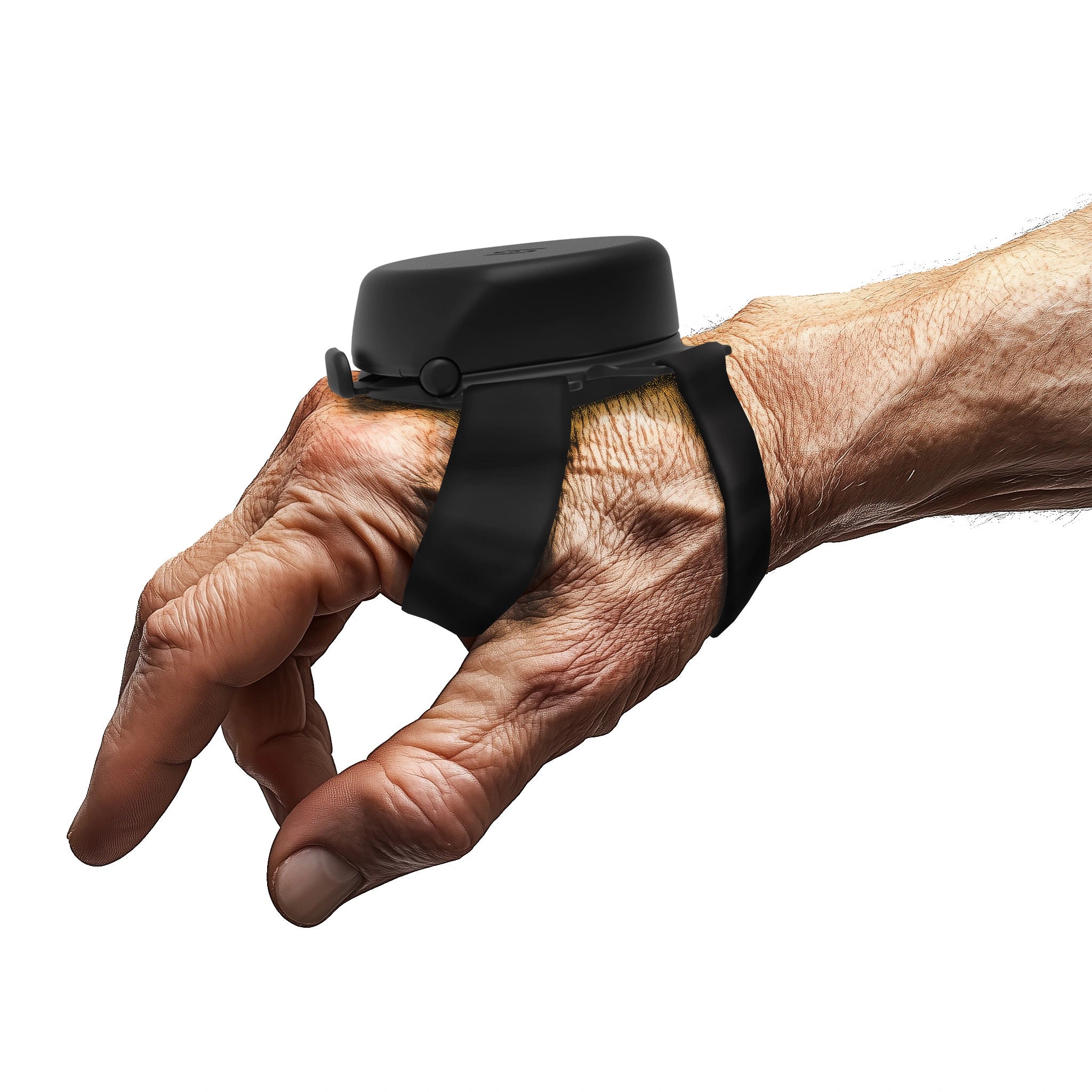
Many of our users report improved typing accuracy with Steadi-3. The device is designed to reduce hand tremors using magnetic vibration absorber technology and can be worn during everyday activities such as computer work.
Because the device is lightweight and battery-free, many professionals use it during office tasks like typing, writing, or using a mouse.
Strategic Break Schedules
Regular breaks help prevent fatigue during computer use.
A common strategy is the 25-minute focus method.
Work for 25 minutes
Take a 5-minute break
Stretch the hands and wrists
These short recovery periods help reduce muscle fatigue that may worsen tremors.
Hand Exercises Between Tasks
Gentle hand exercises can help maintain mobility and reduce stiffness.
Examples include:
Finger stretches
Wrist rotations
Grip release exercises
You can explore additional hand movement strategies in this guide.
These exercises are often recommended between longer computer tasks.
Workplace Accommodations You Can Request
Many professionals hesitate to discuss tremors at work. However, workplace accommodations are often available and can significantly improve productivity.
ADA Rights for Tremor Conditions
In the United States, neurological conditions such as Essential Tremor or Parkinson’s Disease may qualify for workplace accommodations under the Americans with Disabilities Act.
This may include adjustments such as:
Alternative input devices
Speech-to-text software
Flexible work schedules
Ergonomic workstation equipment
More information about disability considerations can be found here.
How to Approach Your Employer
When discussing tremor-related challenges with an employer, it can help to focus on productivity solutions.
Examples include:
Requesting ergonomic equipment
Using speech-to-text software
Adjusting workload distribution for typing-heavy tasks
Many employers are supportive when the request focuses on practical tools that allow work to continue efficiently.
Remote Work Considerations
Remote work can offer additional flexibility for people managing tremors.
Working from home may allow:
Custom ergonomic setups
Flexible break schedules
Voice dictation without office noise concerns
It can also make it easier to integrate assistive devices and software that support typing with Essential Tremor.
Real User Tips from People Who Type with Tremors
People who manage tremors daily often develop personal techniques that improve their workflow.
Some commonly shared strategies include:
Using slightly heavier keyboards that remain stable on the desk
Reducing typing speed intentionally to improve accuracy
Setting larger cursor sizes for easier navigation
Using dark mode and larger fonts to reduce visual strain during corrections
Many professionals also alternate between typing and dictation depending on the task.
For example:
Emails may be dictated
Short messages typed manually
Long reports created through voice input then edited with the keyboard
Others report that stabilization devices help during tasks that require precision, such as spreadsheet work or detailed document editing.
Every tremor pattern is different, so the most effective approach is usually a combination of ergonomic adjustments, assistive technology, and supportive tools.
If hand tremors are affecting your ability to type at work, exploring stabilization tools can be a practical step. Many users try the Steadi-3 anti-tremor glove during everyday tasks such as typing, writing, and using a computer mouse.
Assistive technology continues to improve, and with the right setup, many professionals successfully maintain productivity even when hand tremor challenges are present.
A Stabilizing Solution for Typing with Hand Tremors
For professionals who experience hand tremors while working at a computer, maintaining typing accuracy can be challenging. Small involuntary movements may lead to repeated keystrokes, missed letters, or difficulty controlling the mouse. The Steadi-3 Anti-Tremor Glove is designed to help reduce hand tremors using magnetic vibration absorber technology, providing additional stability during everyday tasks such as typing, writing, or navigating a computer.
The device is lightweight, battery-free, and non-invasive, making it practical for use throughout a workday. Many users wear the Steadi-3 while performing computer tasks to support steadier hand movement and improved control when typing or using a mouse. As an FDA-registered Class I medical device, it offers a professional assistive option for individuals managing Essential Tremor or Parkinson’s Disease who want to stay productive while working at a computer.
Staying Productive at a Computer with Hand Tremors
Working at a computer with hand tremors can present real challenges, especially when tasks rely heavily on typing accuracy and precise mouse control. However, with the right combination of ergonomic adjustments, accessibility software, and practical work strategies, many professionals successfully manage hand tremor challenges every day. Simple changes such as improving keyboard positioning, using alternative input devices, leveraging speech-to-text tools, and taking strategic breaks can significantly improve comfort and productivity during computer work.
Assistive devices may also play an important role for some individuals. Tools designed to stabilize hand movement, such as the Steadi-3 anti-tremor glove, can support everyday activities like typing, writing, and using a mouse. By exploring different solutions and working with healthcare providers when needed, people living with Essential Tremor or Parkinson’s Disease can continue to navigate computer-based work with greater ease and maintain productivity in their daily routines.